Setting up rmpc (Rusty Music Player Client)
How I setup rmpc and returned to the era of simple & personal music library bliss.
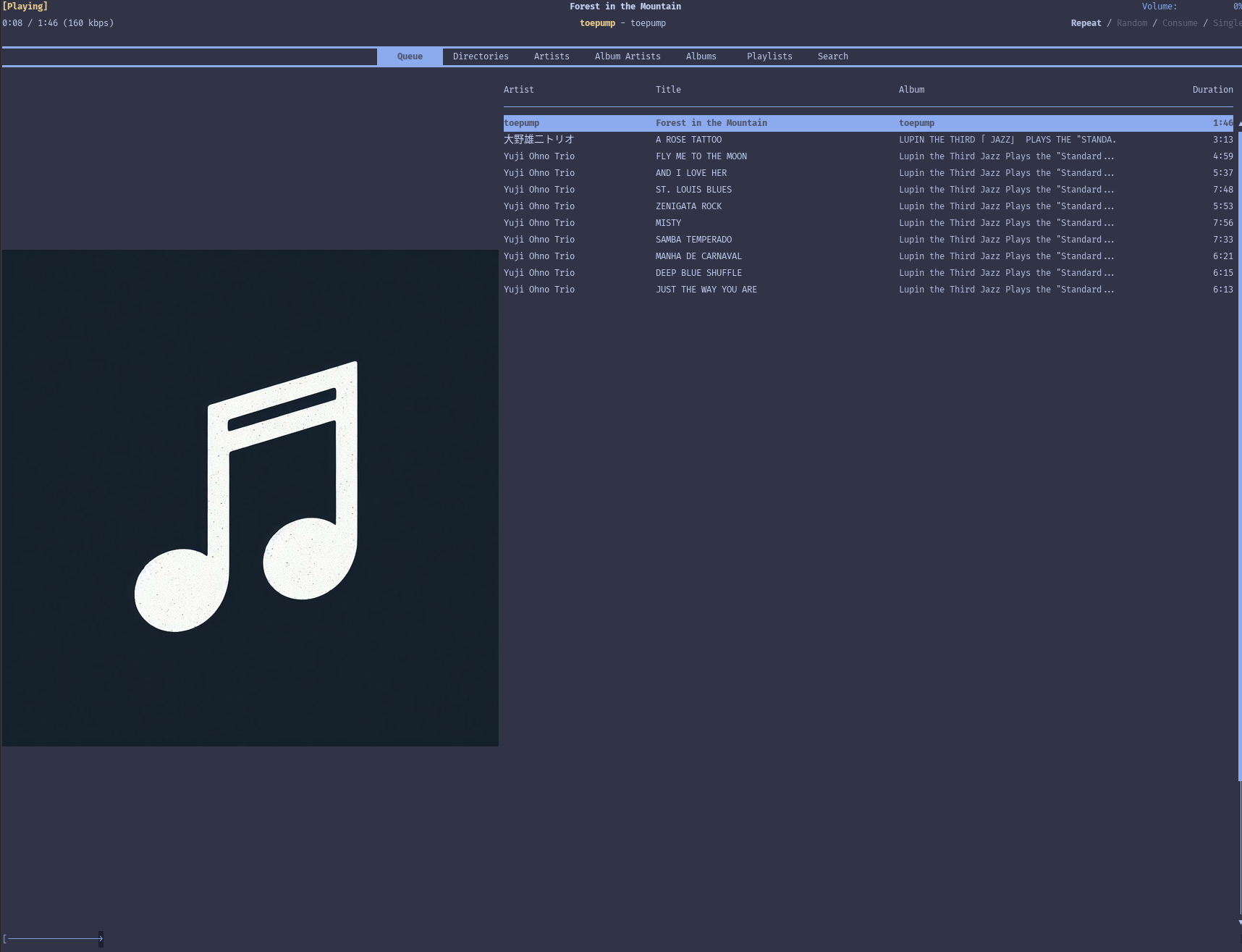
This guide is based on my experience following the official Arch mpd/rmpc wikis and their respective official documentations.
Dependencies needed: mpd, rmpc, (optional) cava for visualizer.
What is rmpc?
rmpc is a:
Configurable, terminal based MPD Client with album art support via various terminal image protocols
Me 😕 : Uh-huh... what's MPD?
Right, MPD is Music Player Daemon which is a server-side application for playing music.
The only thing we need to know (re: the only thing I know) is that it's a common backend driver for many GUI frontends, like the one we're interested in: rmpc.
Why use rmpc?
For me there are 3 reasons:
- Because it looks dope. A Terminal UI to play music? Hell yeah!
- Because I miss the pre-streaming, pre-subscription era of music.
- I miss having my own library to be invested in and to listen through over and over again. Streaming services have many benefits, but I like the idea of slowing down with my own library.
- I miss the days of CD Players and even iPods when you'd chose what music to take with you with intention.
- More practically, I was writing music for my game project. When I exported the song, I realized that I didn't have something like iTunes to play it. I've gotten so used to the Apple ecosystem and just using streaming services exclusively, I didn't realize how troublesome it has become to just have an .mp3 file and want to add it to a local library.
- I do already have Cider as a frontend for Apple Music on Linux. But Apple does not provide support for uploading local files to the cloud through Linux (only MacOS and Windows) as far as I can tell.
Enter rmpc...
mpd
What is it?
The first thing you need to do is install mpd.
Remember this is the brain of the operation, it's the backend.
mpd will take care of the things that music players take care of.
Like:
- database creation and operation
- audio output and management
- running the audio server in the background
- etc.
It can also be heavily configured. If you're interested to learn about more advanaced configurations then visit the webpage.
For my purposes, mpd is only really needed at the most basic level - for just playing my local audio files and making them easy to organize, queue up, etc.
So the configuration is actually very light 👍.
Installation
For your specific Linux distro or package manager, I recommend visiting the actual
mpddocs linked above. For me, I'm using Arch Linux.
As an important note, I will be setting up mpd in the "per-user" mode which means that my configuration will be for me as a user as opposed to system-wide.
This makes it easier to install because I don't need to worry as much about permissions, and I can place my configuration in my usual user ~/.config directory.
If you're setting this up on something that needs to be system-wide or on a remote server, this guide should not be followed step-by-step. Instead, look for the analogous "system-wide" steps on the docs.
- Install
mpd
yay -S mpd- Create a configuration directory for
mpd
mkdir -p ~/.config/mpd- Grab the configuration example template and copy it into a new
mpd.conffile.
The example template is a mostly commented out file that explains all of the parameters and provides commented-out common defaults.
cp /usr/share/doc/mpd/mpdconf.example ~/.config/mpd/mpd.conf- Configure the
mpd.conffile
There are many options. But in truth, to get things up and running for a local music library and player, you really don't need to touch many of them. I recommend reading the comments in the example configuration file or the docs, but at the end of the day, here are the active lines in my config:
# Where you want to keep your music files for mpd to watch
music_directory		"~/Music"

# Where you want to keep your playlist files for mpd to save and load
playlist_directory		"~/Music/playlists"

# Where you want the mpd database file to be stored
db_file			"~/Music/database"

# The address to run mpd from (in this case localhost)
bind_to_address		"127.0.0.1"

# Enables mpd to watch the above "music_directory" to automatically update
# If not enabled, you'd need to make sure to update via your client (rmpc)
auto_update	"yes"

# This is one of the few parameters set by default in the example config
input {
        plugin "curl"
#       proxy "proxy.isp.com:8080"
#       proxy_user "user"
#       proxy_password "password"
}

# Here you'd need to make sure you use YOUR audio server.
# To do so, run `inxi -A` and check.
audio_output {
	type		"pipewire"
	name		"PipeWire Sound Server"
}
That's it!
Then to run mpd in user mode, do:
systemctl --user start mpdIt's important to run in user mode as it means you won't run into permissions issues.
Confirm that it's running with:
systemctl --user status mpdrmpc
rmpc is pretty straightforward to set up.
- Install
rmpc
yay -S rmpc- Configure
rmpcwith the bootstrapping config command.
# If the rmpc directory doesn't exist you may need to create it
rmpc config > ~./.config/rmpc/config.ron- In the config file, just ensure that your
addressparameter matches the address you configured formpdso thatrmpccan hook up to it.
By default it uses 6600 port and the same localhost address we configured. So far I've not had any problems with this default.
...
    address: "127.0.0.1:6600",
...- Run
rmpc!
rmpcPost Installation
Now that you should have mpd powering a nice rmpc frontend, you just need to start adding music to your library and learning how to use rmpc.
Adding music is as simple as copying your files in the directory you setup for your music files earlier.
If they don't show up right, then try doing rmpc update.
You shouldn't need to do this though as it should be automatically updating when you open rmpc due to the mpd configuration that you set earlier: auto_update: "yes".
You can also try your hand at customizing the paneling, themes, etc. There are a lot ways to configure rmpc.
You can go ahead and refer to my custom theme in my dotfiles if it's to your liking 😄!
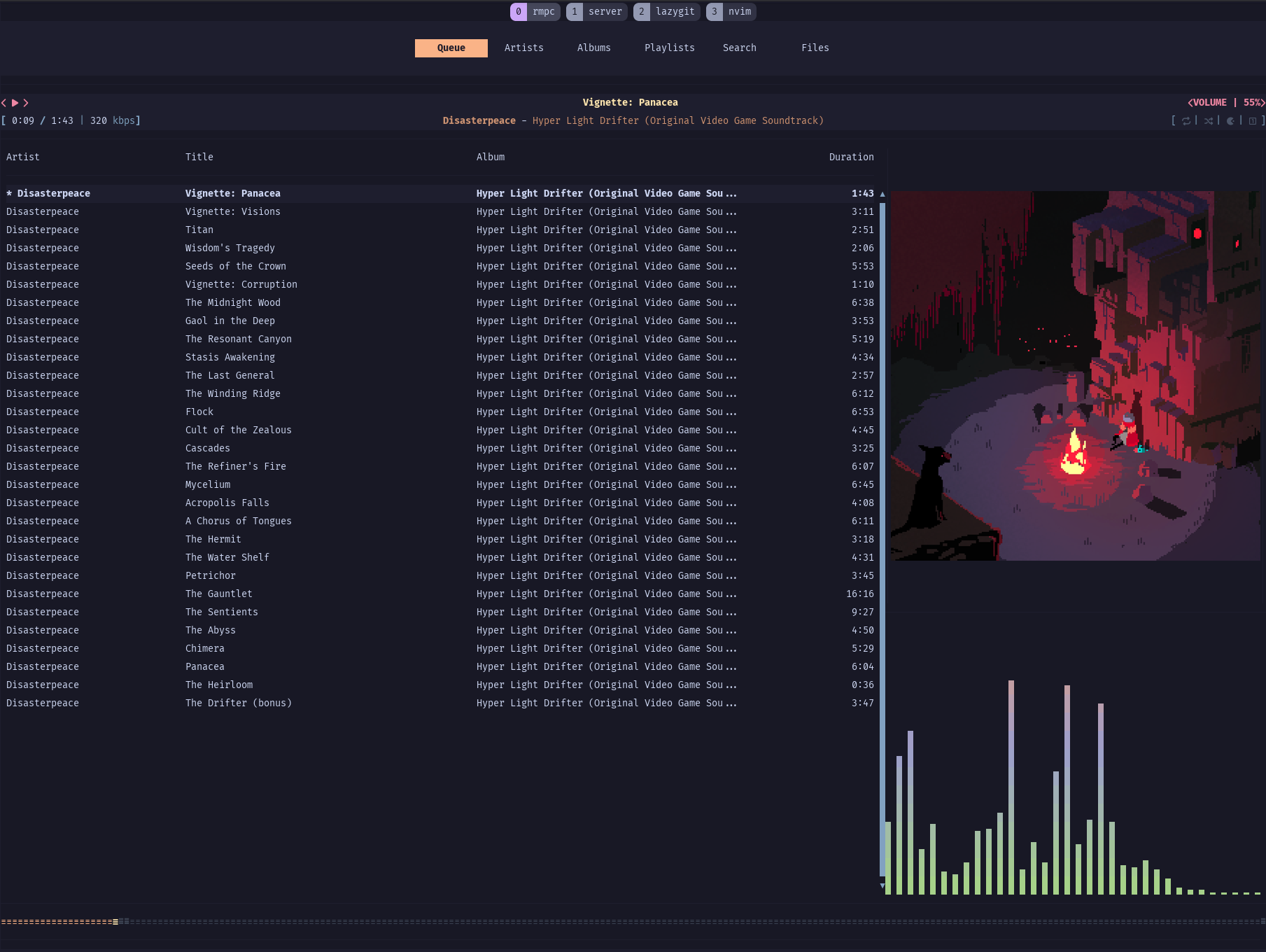
That's it! Enjoy!